
My Microsoft Copilot Tips and Tricks
Meet Copilot Tasks (now called Copilot Cowork)

Big news, Microsoft Copilot Tasks! This feels like baby steps towards being similar to Claude Cowork. Grab your popcorn, friends. 🍿
Join the waitlist here: copilot.microsoft.com/tasks/preview. I had trouble seeing it in Chrome but could see it in Microsoft Edge.
*Now called Copilot Cowork in partnership with Claude Cowork: Best of both worlds!
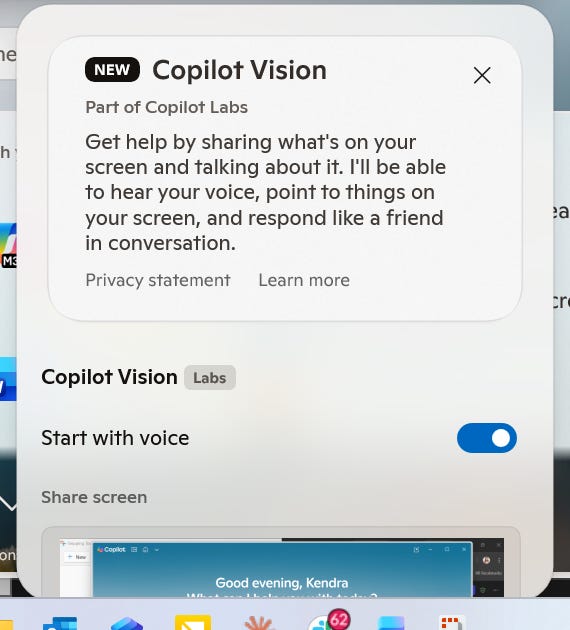
Also, I clicked the glasses icon in the Copilot desktop app and got this. Copilot Vision popped up. We can now share our screen with it. This is great to use to talk through something on your screen, like your own helpdesk. ChatGPT does this too.
My Microsoft Copilot Tips and Tricks
Everyone seems to hate on Copilot so here are a few things I love about Copilot.
*You do need the paid version to use these tips.
CoPilot Outlook
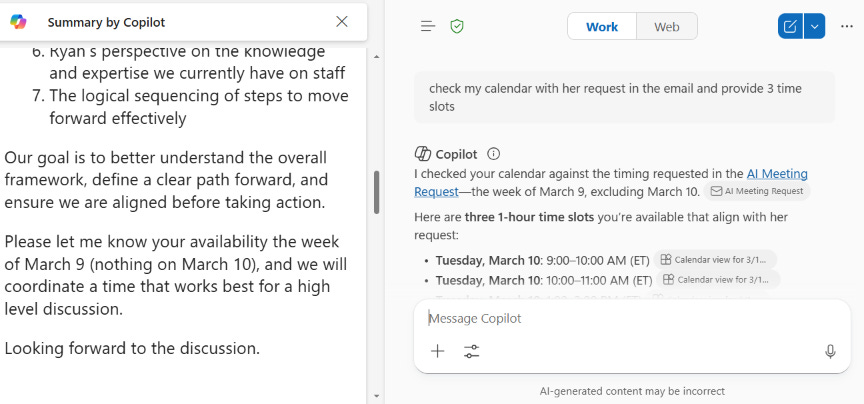
Use Copilot in Outlook: with the email open that you want to respond to, click Copilot and prompt: “look for time slots in my calendar over the next week for 1 hour. present 5 slots”
If the person suggests a specific week or timeframe in their message, you can be even more precise. Prompt: “Check my calendar against the timeframe mentioned in this email and suggest 3 one-hour time slots.”
Copilot reads the email, understands the requested dates, and cross-references your calendar automatically.
CoPilot Schedule Meeting
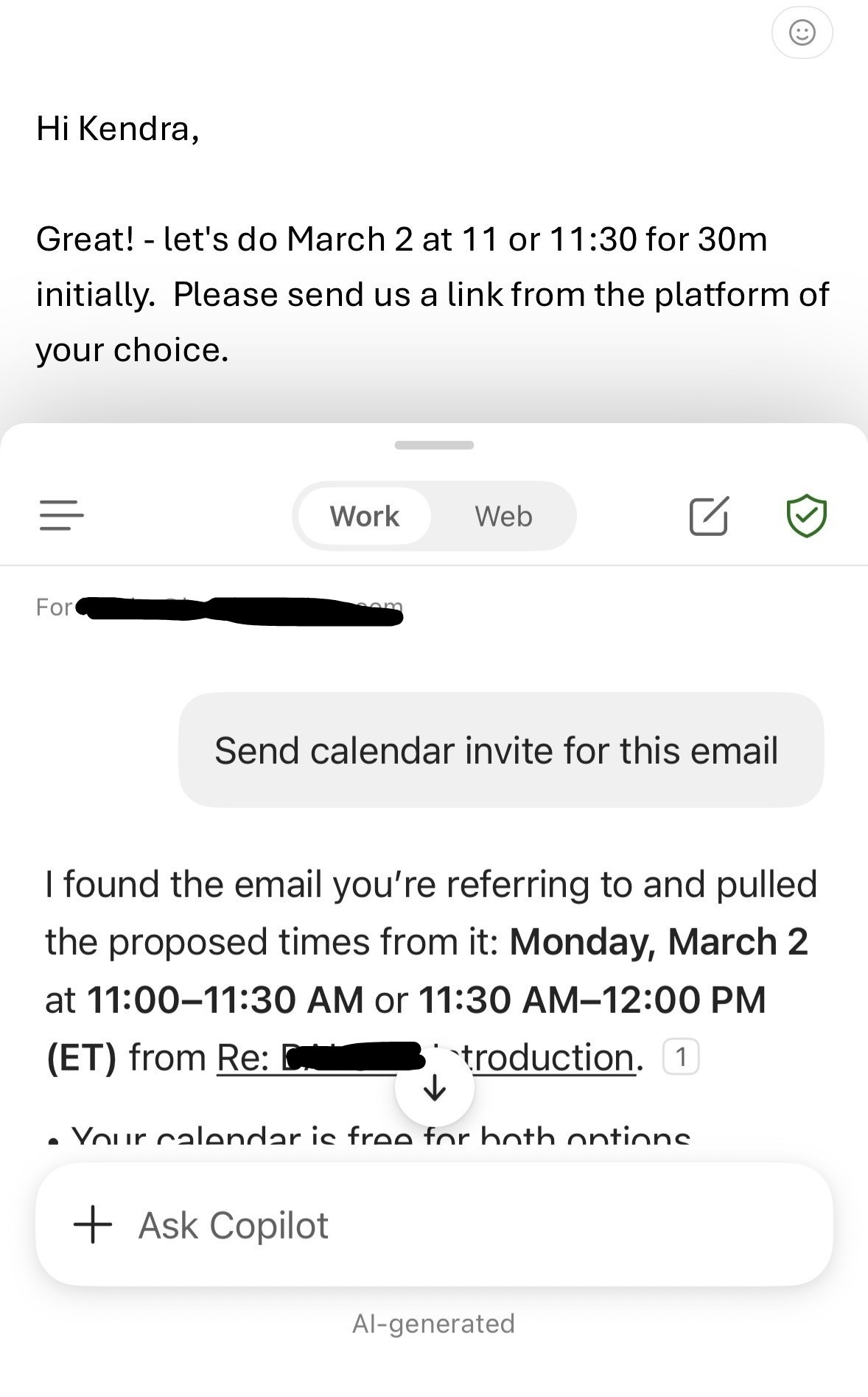
Pull up the email that is requesting your time, click Copilot and tell it to draft and send the meeting invite. I did this on my phone.
Outlook Agent
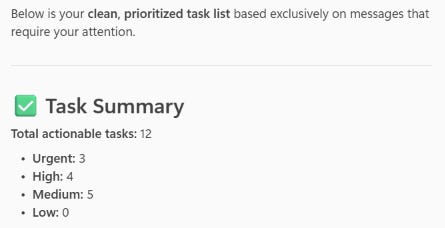
I also have an Outlook Agent that I built to go through my emails and it reviews: Flagged emails, emails that need a response if I haven’t responded already, and then it prioritizes what actually needs my attention. The task list it gives me is clickable and I can go directly to what needs to be handled. I am always afraid of missing something or not being responsive in a timely manner. This helps me manage my emails. It knows to remove any marketing or promotional emails, newsletters, or emails that I have already responded to. This is what is in my task list this morning.
CoPilot Create
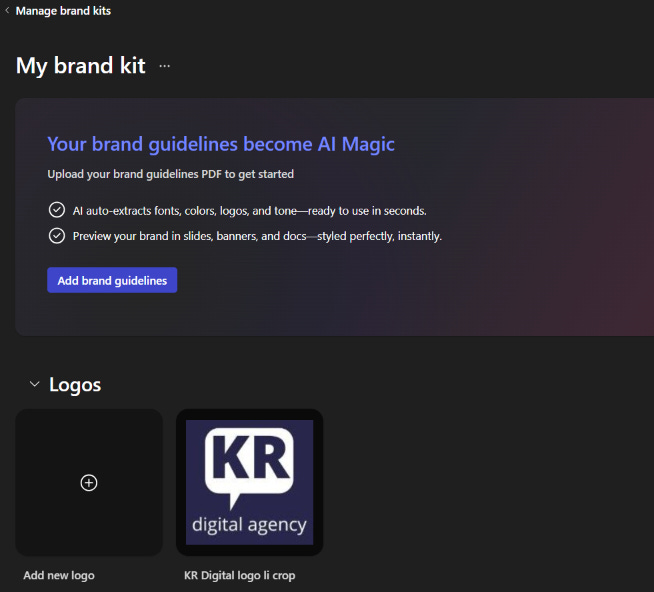
In CoPilot Create, create your own Brand Kit
Logo, colors, fonts, images, style, brand voice, icons and templates. You can build multiple kits if we serve others as well.
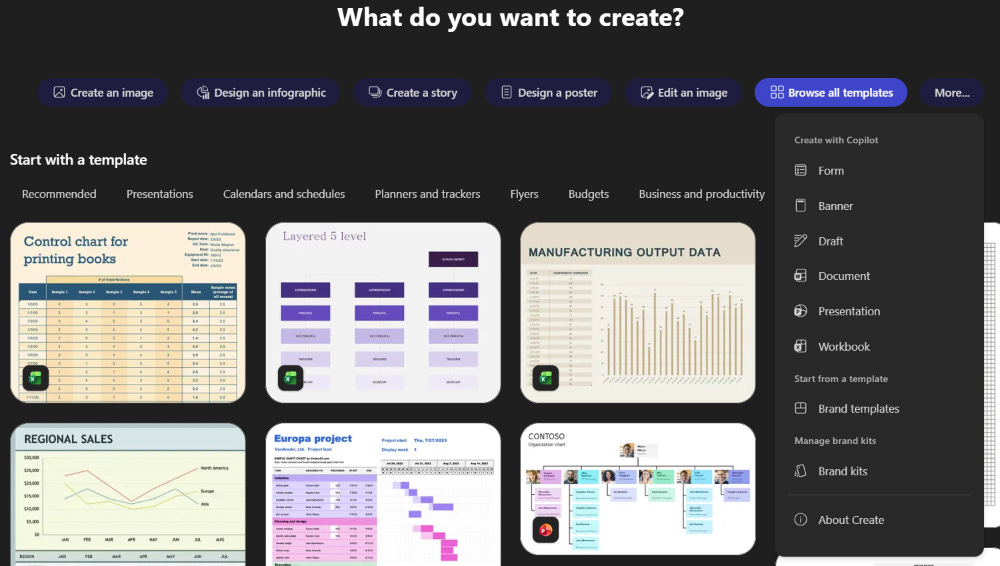
You can create several things with CoPilot Create.
Images, infographics, posters, presentations, banners, forms, workbooks, flyers, etc.
CoPilot Chat
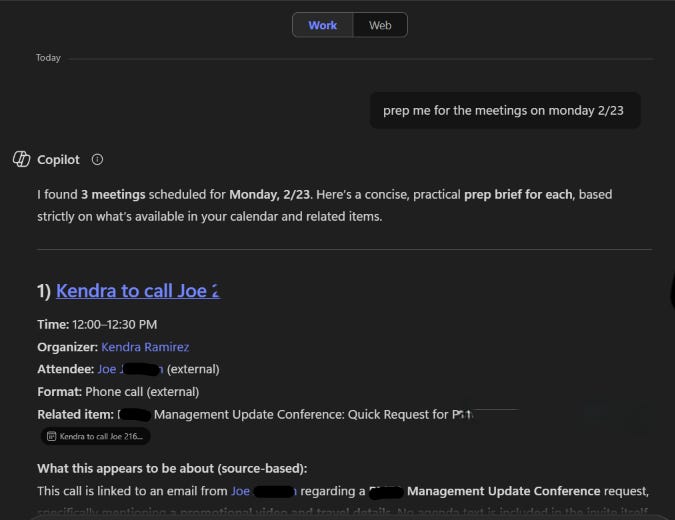
Love meeting preparation. Prompt: prep me for my meetings on X date. It pulls in the meeting invite and emails associated with the meeting, and writes a summary for each meeting.
CoPilot Prompt Gallery
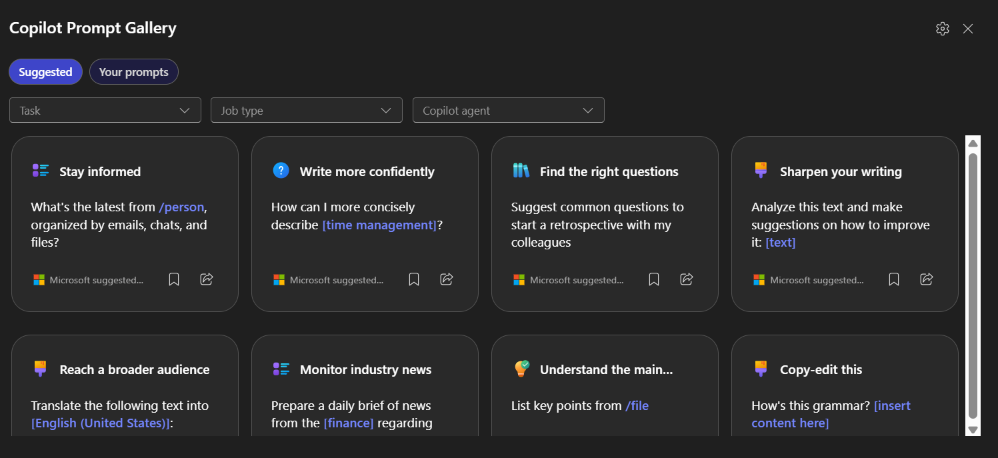
CoPilot has several prewritten prompts you can use. You can also save your own prompts that you use often.
In your main chat window, click on see more, scroll to the bottom and click prompt gallery to get to the screen below. Not sure why this is so buried.
CoPilot Search
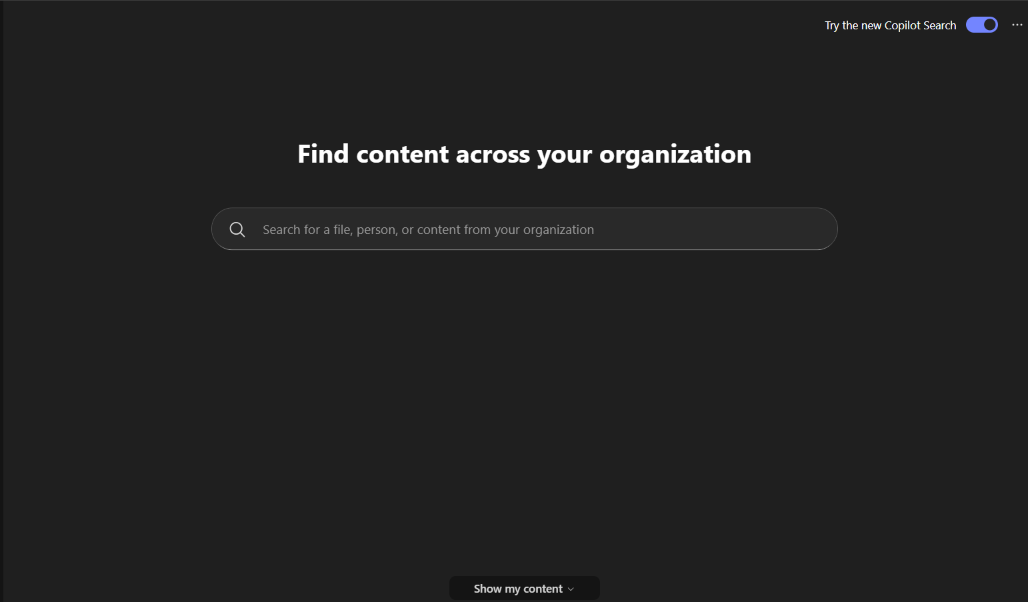
This is new! You can now search across your organization. Click search in your side bar. https://learn.microsoft.com/en-us/copilot/microsoft-365/microsoft-365-copilot-search
Just make sure you have files and or folders that you don’t want the whole organization to be able to search.
Inside Microsoft 365, click Search in the sidebar.
Copilot can now search across your organization’s content, not just your own files.
That includes: SharePoint, OneDrive, Teams, Outlook, and Documents you have access to
Instead of hunting through folders or guessing file names, you can ask natural questions like:
“Find the latest version of the Q4 marketing plan.”
“Where is the HR policy on remote work?”
“Summarize the proposal we created for XYZ Company.”
Copilot searches across the org and surfaces what you already have access to.
Important: Permissions Still Matter
Copilot does not override security. It only finds content that someone already has permission to see.
That means this is a great moment to double-check: Shared folders, Open SharePoint libraries, “Everyone in the organization” permissions and Sensitive HR or finance files
If it’s searchable, it’s discoverable.
Schedule Your Prompts
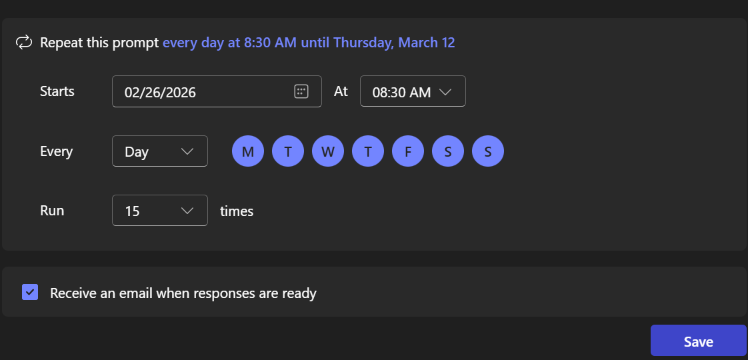
You can schedule your prompts to run automatically. Hover over the prompt you used that you want to run, and click the clock to get to this screen and set your frequency and duration.
For any privacy or security concerns as it relates to Microsoft Copilot, you can read more here: https://learn.microsoft.com/en-us/copilot/microsoft-365/microsoft-365-copilot-privacy. Make sure you are in the paid version of Microsoft Copilot for privacy and security.
Downloadable Resources for You
For the last three years, leaders have asked me for the assessments, templates, and planning guides we use in our AI sessions. So I pulled together the most requested resources and made them super affordable for small businesses and nonprofits because everyone deserves access to practical, approachable AI.
Inside you’ll find:
AI planning playbook for 2026, 11 pages
Policy templates (2 templates)
Adoption assessment reviewing 16 categories
AI leadership insights (lessons from 160+ sessions, 12 pages, including an assessment)
ChatGPT modes, connectors and shortcuts
Claude Cowork 101- 8 page non technical guide. NEW
Or a bundle to get them all for only $99, a $250 value.
If you’ve been wanting a simple starting point or something to help your team move faster, this is for you.
Take a look: https://payhip.com/AISimplified
Would love your feedback on what to add next.
2026 AI Adventures
We also just announced our private digital community of CincyAI Champions:
For $25/month or $250/year ($50 off!), access our paid member portal with: BIG thank you to the 65 members that have signed up already!
• CincyAI Human Huddle interest groups
• Limited time only: “CincyAI Founding Champion” Badge
• CincyAI Champions Member Directory
• Monthly Office Hours with Helen & Kendra — Bring your AI questions each month.
• Cincinnati Area AI Job Board
• CincyAI & Community Partners Events Calendar
• CincyAI Champion Matchups
• And more!
Limited time only: 30 days free trial as we’re seeding the community — join now to get your Founding CincyAI Champion member badge!!
https://app.heartbeat.chat/cincyai/invitation?code=D73D97#choose Loving our digital community.
March
March 12 Cloud Nirvana 2-5 at CBTS. https://www.eventbrite.com/e/cloud-nirvana-cincinnati-foundations-fluency-tickets-1980816320938?aff=oddtdtcreator Use this code for free access CN_CINCYAI
March 23 9-12 EST online Intro to AI session. Tech Cred reimbursed. https://maxtrain.com/artificial-intelligence/general-artificial-intelligence-and-business-applications/introduction-to-ai/
April
April 3 CincyAI from 3-5 at UC Digital Futures building. https://www.eventbrite.com/e/1983161342962?aff=oddtdtcreator
I love answering your AI questions. Feel free to message me.
Where AI and inspiration collide!
Kendra Ramirez
KendraRamirez.com
We provide AI Speaking and Training, AI Readiness, AI Strategy, Workflow Automation, and Implementation. Our clients love that we sit side by side with them in our human centered approach to AI.
**For those new to my work, I have been in tech my whole career. Over 15 years of running my digital agency (website, social media, and lead generation) and 7 years of helping businesses navigate AI. Over the three years and, I’ve had the privilege of leading over 197 AI sessions and speaking sessions (15,000 people), empowering businesses to embrace the transformative potential of AI. My passion lies in simplifying complex technologies to help organizations grow, innovate, and thrive.
I am so excited that you are on this journey with me! Thank you! 🤗
I have been writing weekly about AI here for almost three years. You can search all of my enewsletters here if you are looking to brush up on a certain topic. kendratech.substack.com